
Please follow these 4 steps to view your child's report card:
Step 1. Log into your Blackbaud Parent Portal: (Please note: Google Chrome or Mozilla Firefox usually work best with Blackbaud)
Step 2. In the upper left hand corner of the screen select the child whose report card you would like to view.
e child whose report card you would like to view.

Step 3. Click on the Progress Tab. Select the grade you would like to see.
*(Progress Tab-Select Grade)
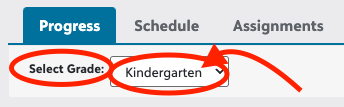
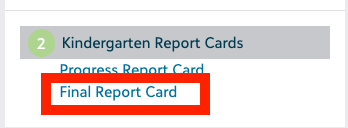
Step 4. Once the 'Pre-Kindergarten' and/or 'Kindergarten' grade level has been selected, under the Progress tab you will see 'Files' and a '... Report Cards' link. Click the 'Report Card' link (for Fall grades) or 'Final Report Card' (for Spring grades). Then your child’s report card will be generated! This may take a few seconds.
*(Performance Tab-Select Report Cards- Select Kindergarten Report Cards > Progress Report Card)
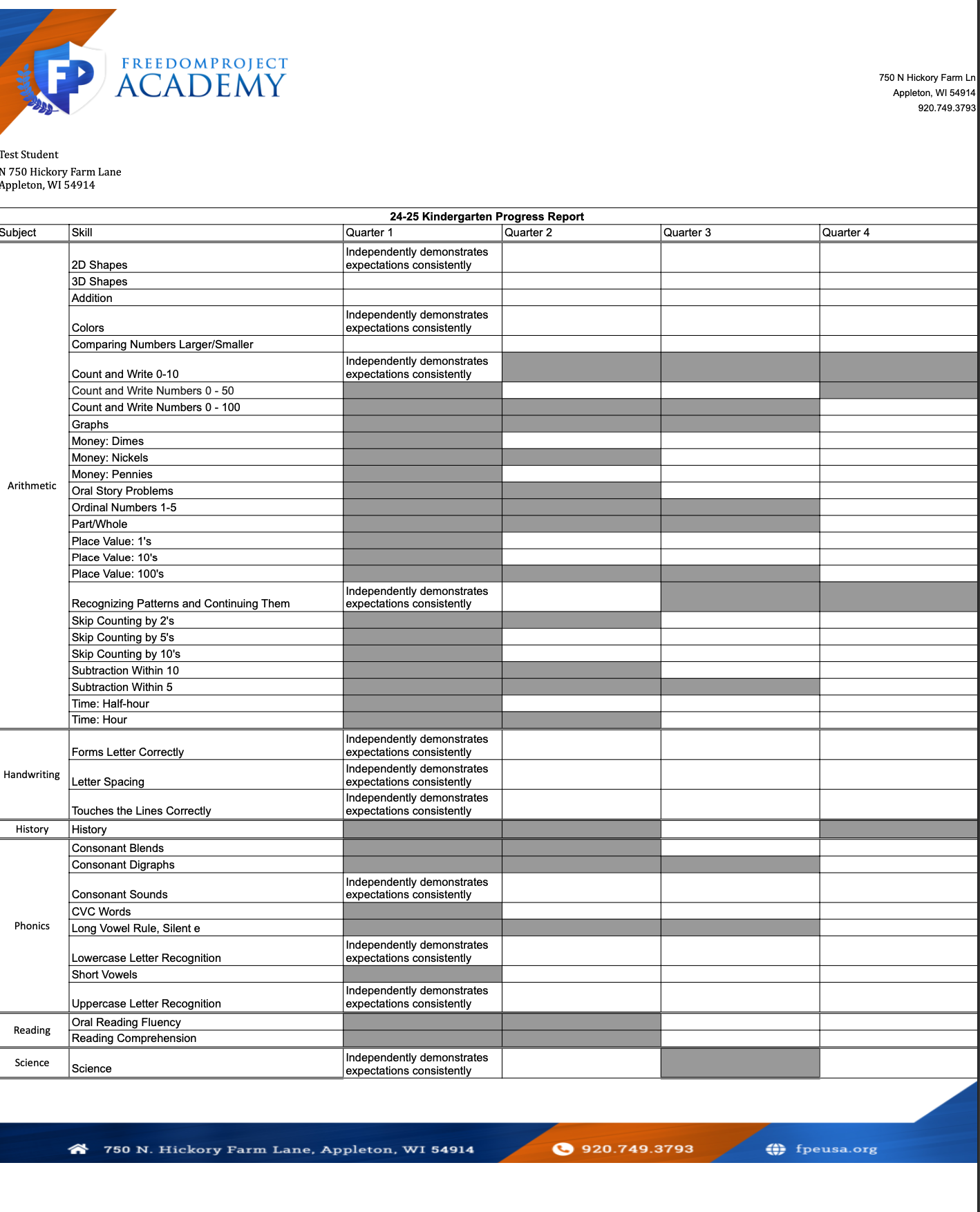
*(Final report will look something like this)
Issue/Product | How to view your Kindergarten Report Card |
Version # | N/A |
Solution or Work-around | Solution |