
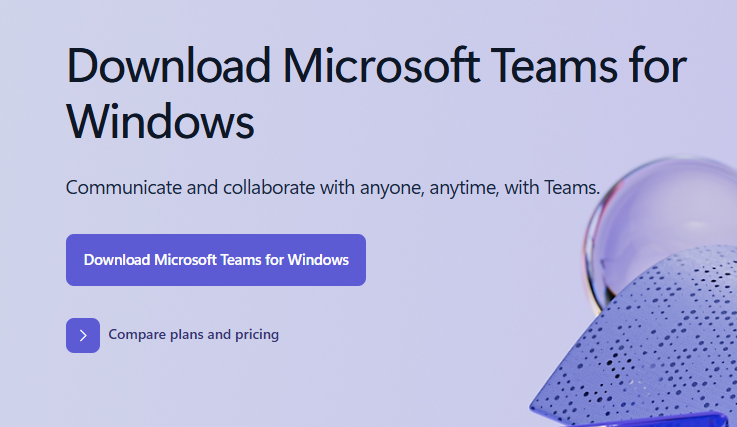
Step 1. On your browser navigate to the following address: https://www.microsoft.com/en-us/microsoft-teams/download-app
Step 2. Once you are on the Microsoft Teams Download screen click the button labeled 'Download Microsoft Teams for Windows'
Step 3. In the upper right hand side of your screen you should your download begin to process and the file will look like the following:
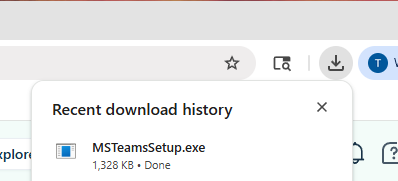
Follow the necessary installation instructions.
Step 4. The Teams application should automatically launch if it does not please click Windows Start Menu>Search>"Teams">Click the app labeled "Microsoft Teams" to launch.
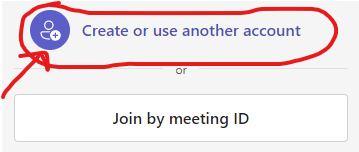
Step 5. If you see your FPA account please click it otherwise please select 'Create or use another account' Now please sign in with your FPA account so that your webpage will look like the following:
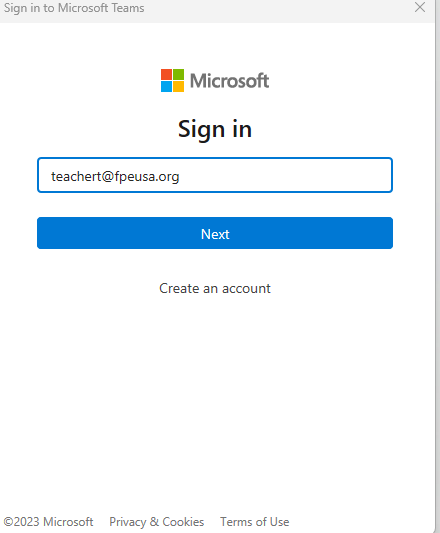
Step 7. You should now be logged in to Microsoft Teams
Issue/Product | Logging in to Microsoft Teams for Windows |
Version # | N/A |
Solution or Work-around | Solution |